Contents
Start – no download, no account
SOVEREIGN runs right in your browser. Single player works without an account and without a server; you only need an account when you choose an online feature (cloud saves, friends, multiplayer). Sign-in then appears in the game and you continue where you were.
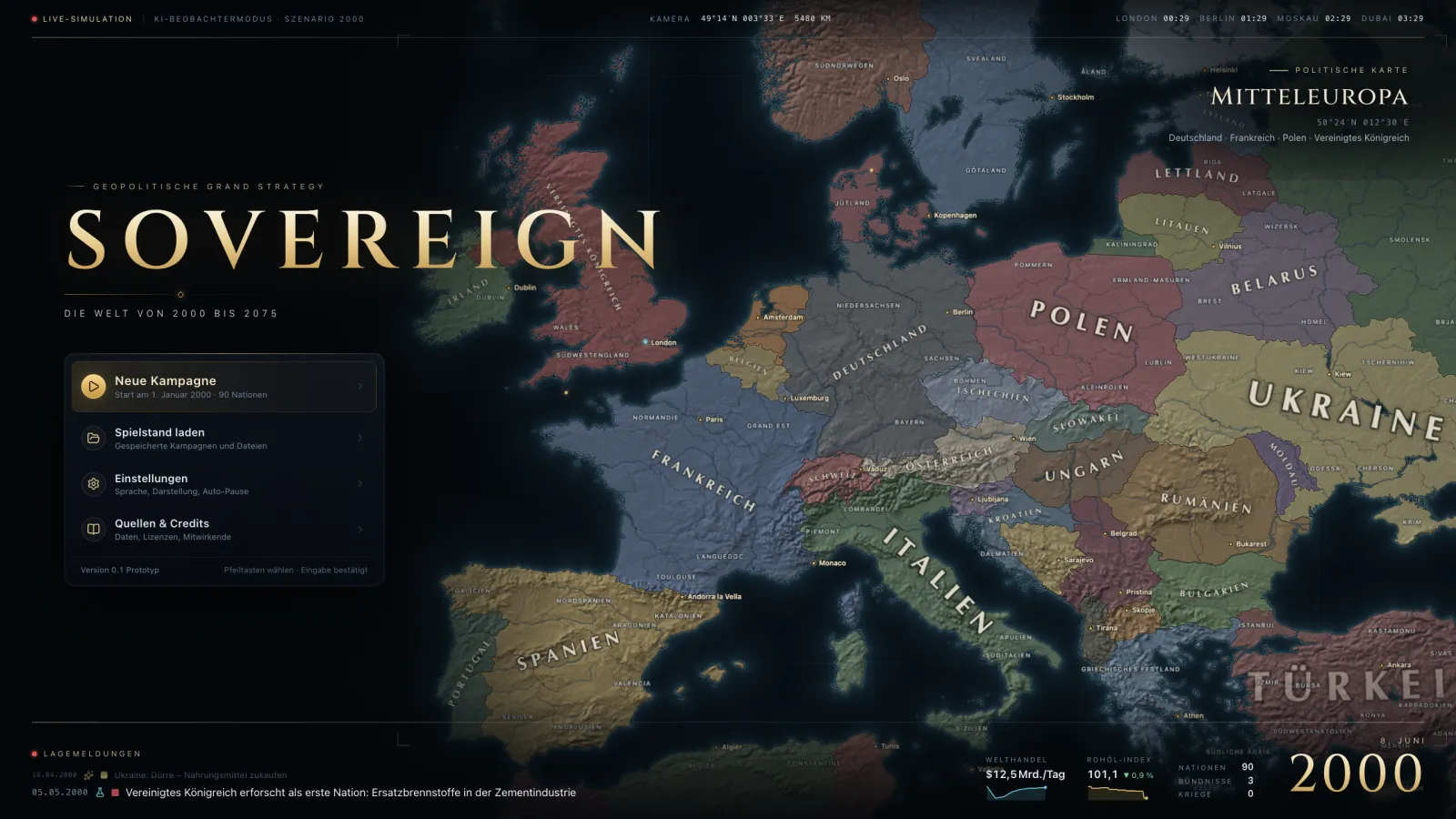
The title screen already shows the real map: in the background an observer game runs in which only the AI governs. Under New campaign you choose map and scenario, then your nation – one click on a country is enough.
Reading the map
Drag the map with the mouse, zoom with the wheel or move with WASD; a double-click zooms in. At the bottom right you switch the map mode:
- Political and Terrain for an overview,
- Diplomacy for friends, allies and enemies,
- Population density, GDP per capita, Industry, Infrastructure, Unrest and Supply as data maps,
- Trade for flows of goods and chokepoints, Tension for running crises.
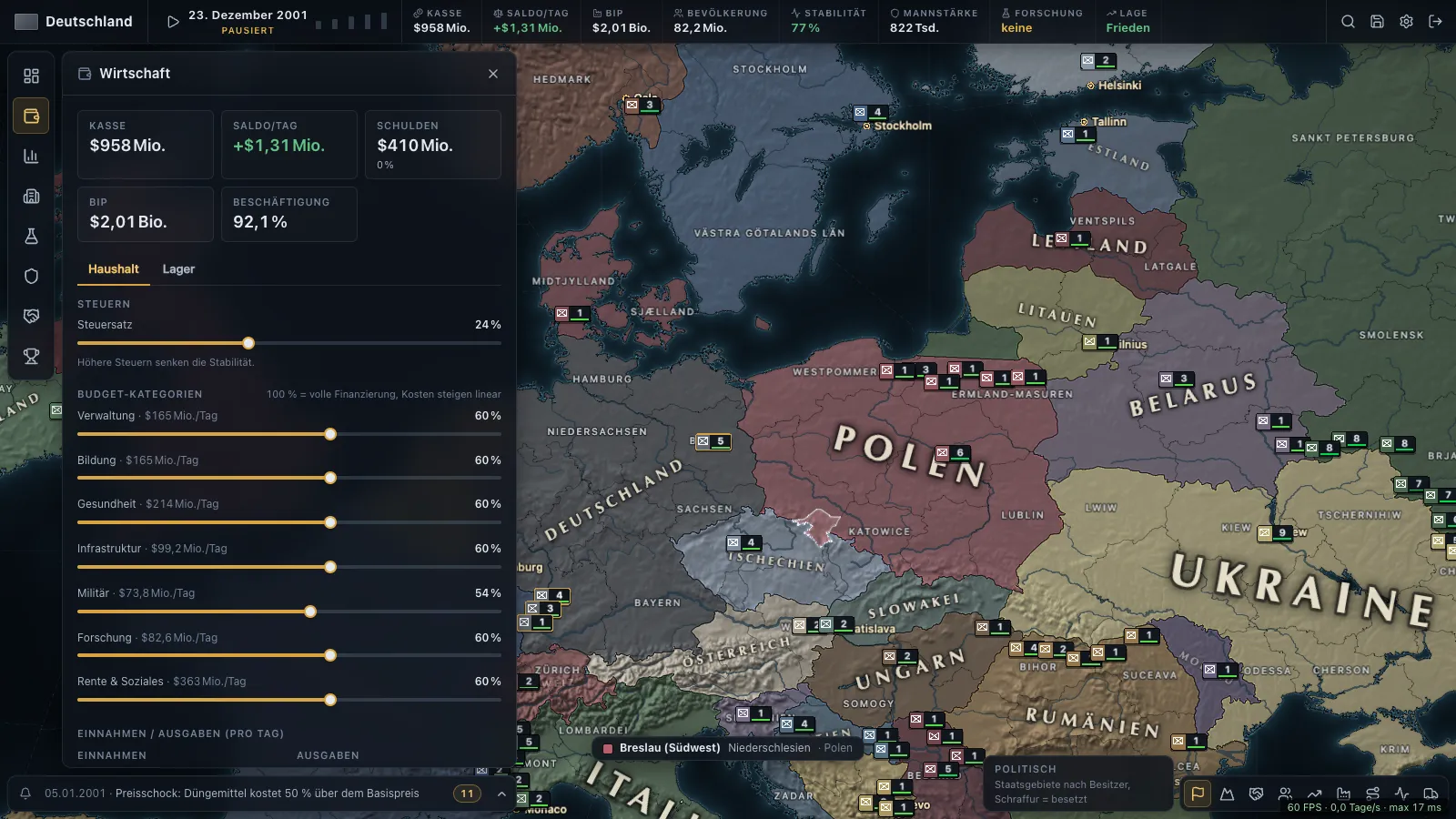
Clicking one of your provinces opens the region's detail panel on the right: population, employment, buildings with their production method and limiting factor – and under Build new projects with cost and duration.
Controlling time
The game starts paused. Press Space or the play button in the status bar to start time; keys 1–5 select the speed. One simulation step is one game day.
- Speed 1
- 3 s per day
- Speed 2
- 1.2 s per day
- Speed 3
- 0.5 s per day
- Speed 4
- 0.15 s per day
- Speed 5
- as fast as possible (up to 50 days/s)
Values from the client specification (Spec 40 §2).
Important events pause the game automatically (configurable): a declaration of war against you, a peace offer, an alliance request, an event with a decision or an ultimatum.
Panels and shortcuts
The navigation rail on the left opens the panels. Each has a shortcut:
- F1
- Overview
- F2
- Economy (taxes, budget, stocks, trade partners)
- F3
- Market (world market, price history, trade orders)
- F4
- Construction (queue)
- F5
- Research tree (full-screen timeline)
- F6
- Military
- F7
- Diplomacy
- F8
- Ranking
- F9
- Research (compact list)
- F10
- Chronicle
- K
- Crises
- Ctrl/⌘ + K
- Search for nations, regions, provinces
Shortcuts do not apply inside input fields.
The “Why?” tooltip
Hover over a value in the status bar – treasury, balance, GDP, stability, research. The tooltip shows what the value is made of and nests the causes down to their source. If stability drops, you see for example whether taxes, unemployment, supply, a war or a diplomatic crisis is behind it.
This is the most important way to learn the game: instead of memorising rules, you ask a value why it is what it is.
Your first hour
- Survey the situation: overview (F1) and economy (F2). How large are balance and debt, which goods are missing from your stocks?
- Remove a bottleneck: if a factory shows a missing input as its limiting factor, a building that produces it often helps – or a trade order in the market (F3).
- Start research: in the research tree (F5) you plan a path with one click; the queue works through it.
- Let time run: speed 2 or 3 and watch the messages at the bottom left. Clicking a message jumps to the province.
- Save: via the status bar.
Saving
Saves are stored locally in your browser (IndexedDB). You can export any save as a file (.sovsave) and import it again – for example to take it to another computer. Cloud saves with an account follow with multiplayer.
For experts: what runs in the background
The simulation runs as WebAssembly in a web worker, separate from the interface. Systems run at different rates: production, trade and construction daily, world market prices and trade routes weekly, budget closing, population, stability and AI monthly. That is why prices move week by week while treasury and balance change smoothly every day.
For now, suggestions go through the Discord channel or the community page.
Derived from the specifications; measurements come from test runs of the prototype and are marked as such.